Ubuntu Linux + Dell Wireless 5700 CDMA/EVDO Card
published 2007-06-03 · tags: evdo, linux, ppp, ubuntu, wireless
UPDATE (11-04-2008): NetworkManager 0.7 has been introduced with Ubuntu 8.10. This major overhaul includes native support for Mobile Broadband card as shown in the screen-shots below. The great news is that virtually all CDMA cards work right out of the box with no configuration necessary. Thank you, NetworkManager developers! I suggest upgrading to the latest version of Ubuntu, or use the NetworkManager PPA or SVN to at least upgrade to version 0.7.
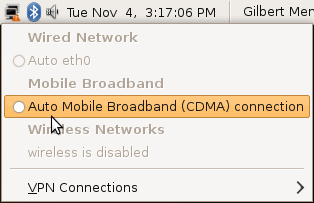
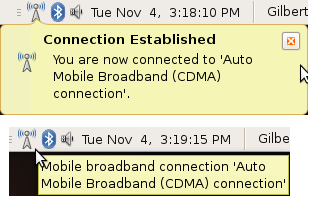
ORIGINAL POST: Great news! The internal Dell Wireless 5700 Mini PCI Express Card for use with CDMA/EVDO networks is very easy to get working with Linux. The following tutorial was written for Ubuntu 7.04 (and works with 7.10 Gutsy), but the procedures are essentially the same for most Linux distributions. Please consult with your distribution documentation to assist with any differences.
Here’s how to get it going.The card is presented to the operating system as a USB device and is used as a dialup modem via the “usbserial” kernel module. You load this kernel module with two variables that are specific to your wireless card; the Product and Vendor Identifiers.
You can find these values by listing the USB devices with “lsusb”.
$ lsusb

Bus 005 Device 001: ID 0000:0000

Bus 003 Device 002: ID 413c:8103 Dell Computer Corp. Wireless 350 Bluetooth

Bus 003 Device 001: ID 0000:0000

Bus 004 Device 002: ID 413c:8114 Dell Computer Corp.

Bus 004 Device 001: ID 0000:0000

Bus 002 Device 001: ID 0000:0000

Bus 001 Device 003: ID 046d:08c6 Logitech, Inc.

Bus 001 Device 001: ID 0000:0000
Although not obvious, the above output shows the 5700 wireless card as being on Bus 004 Device 002. The Vendor ID is 413c, and the Product ID is 8114. You can verify this by running “sudo lsusb -v | less” and search through the output for the device details.
$ sudo lsusb -v | less

Bus 004 Device 002: ID 413c:8114 Dell Computer Corp.

Device Descriptor:

bLength                18

bDescriptorType         1

bcdUSB               1.10

bDeviceClass            0 (Defined at Interface level)

bDeviceSubClass         0

bDeviceProtocol         0

bMaxPacketSize0        64

idVendor           0x413c Dell Computer Corp.

idProduct          0x8114

bcdDevice            0.00

iManufacturer           1 Novatel Wireless Inc.

iProduct                2 Novatel Wireless EXPD CDMA

iSerial                 0

bNumConfigurations      1
Note: For a nice graphical view of you USB devices, check out “usbview”, which you can install with “sudo apt-get install usbview”. Here’s a screenshot of usbview in action, showing the specifics of my card:
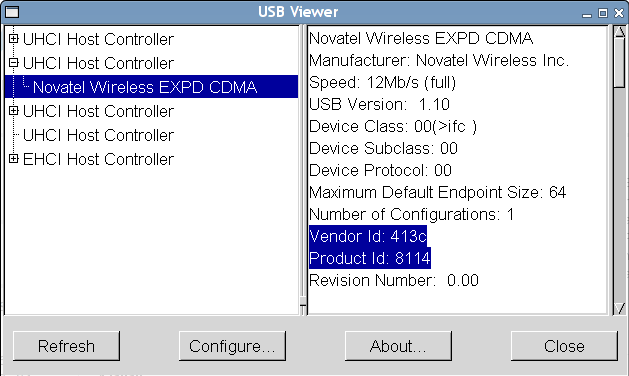
Next you need to load the appropriate kernel module with values from above in the following format:
$ sudo modprobe usbserial vendor=0x413c product=0x8114
Typically, your card will map itself to “ttyUSB0″. You can check by looking through your kernel logs.
$ grep tty /var/log/messages

Jun  2 18:10:49 laptop kernel: [   18.920000] usb 4-2: generic converter now attached to ttyUSB0
You should ensure that your computer loads the usbserial kernel module at bootup by adding the same variables to /etc/modules.
$ sudo sh -c 'echo usbserial vendor=0x413c product=0x8114 >> /etc/modules'
Now to actually configure your device for use, simply use your favorite dial-up configuration utility. I prefer “pppconfig”, so here’s the basic steps:
$ sudo pppconfig
Select “Create a connection”
Provider Name: verizon
Select “Dynamic DNS”.
Select “PAP” as the Authentication method
Username: phone_number_here@vzw3g.com
Password: anything… “password” for example.
Speed: 115200
Select “Tone”
Phone Number: #777
Define device as “ttyUSB0″
I also add the following two lines to /etc/ppp/peers/verizon to prevent annoying automatic disconnections due to a lack of lcp responses.
$ sudo sh -c 'echo lcp-echo-failure 0 >> /etc/ppp/peers/verizon'

$ sudo sh -c 'echo lcp-echo-interval 0 >> /etc/ppp/peers/verizon'
My completed /etc/ppp/peers/verizon configuration looks like the following:
# This optionfile was generated by pppconfig 2.3.15.

#

#

hide-password

noauth

connect "/usr/sbin/chat -v -f /etc/chatscripts/verizon"

debug

/dev/ttyUSB0

115200

defaultroute

noipdefault

user "5551112222@vzw3g.com"

remotename verizon

ipparam verizon

usepeerdns

lcp-echo-failure 0

lcp-echo-interval 0
Add the following lines to your /etc/network/interfaces file:
iface ppp0 inet ppp

provider verizon
Restart Network Manager so that it reads the change from the last step.
$ sudo /etc/dbus-1/event.d/25NetworkManager restart
By doing so you will be able to connect and disconnect from Network Manager:
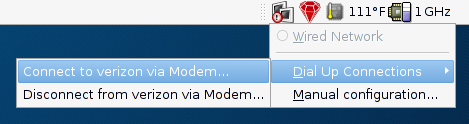
You should receive an IP address within a few seconds, and you’re ready to surf. One thing I noticed is that there’s a lack of notification from Network Manager that your dial-up connection is actually up and running after a successful connection. The status icon does not change, and the “Connection information” menu item remains unavailable. You can of course use “ifconfig” to display your current IP address and status of the ppp0 interface.
If you look at /var/log/messages, you will also find all the nice pppd connection output.